


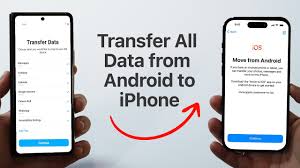
Switching from an Android device to an iPhone can feel like a daunting task, especially when it comes to transferring important data.
Fortunately, several methods can seamlessly move your contacts, photos, apps, and even WhatsApp chats from Android to iPhone. In this guide, we’ll explore different ways to transfer your data and address some commonly asked questions about the process.
How to transfer data from android to iphone
1. Using Apple’s “Move to iOS” App
Apple provides a simple and effective solution for transferring data from Android to iPhone: the “Move to iOS” app. It’s designed to help users move essential data such as contacts, messages, photos, and other files from Android to a new iPhone during the initial setup.
Steps to Use Move to iOS:
- Download the App: First, go to the Google Play Store and download the “Move to iOS” app on your Android phone.
- Set up your iPhone: Begin the initial setup on your new iPhone. When you reach the “Apps & Data” screen, select “Move Data from Android.”
- Connect the Phones: Open the app on your Android device, follow the on-screen instructions, and enter the code shown on your iPhone. This will create a direct Wi-Fi connection between the two devices.
- Select Data to Transfer: On your Android phone, choose the data you want to transfer. The process will start, and depending on the amount of data, it may take a while.
Once the transfer is complete, you’ll have your Android data available on your iPhone. This method is ideal for new iPhones during the setup process, but what if you’ve already set up your iPhone?
2. How to Transfer Data from Android to iPhone After Setup
If you’ve already set up your iPhone but didn’t use the Move to iOS app, don’t worry there are still ways to transfer your data without resetting your iPhone.
You can use cloud-based services like Google Drive and iCloud to manually transfer files, contacts, and photos. For example, you can upload your photos and videos to Google Drive on your Android phone and download them to your iPhone via the Google Drive app.
Another option is Snapdrop, a free and straightforward platform that works similarly to Apple’s AirDrop. It allows you to transfer files between devices on the same Wi-Fi network.
How to Use Snapdrop:
- Open Snapdrop: On both your Android and iPhone, open a web browser and go to the Snapdrop website.
- Select and Send Files: Choose the files you want to transfer from your Android phone, and Snapdrop will send them wirelessly to your iPhone.
- Receive Files: On your iPhone, accept the files, and they’ll be saved directly to your device.
3. Transferring WhatsApp Data Without Resetting
One of the biggest concerns for users switching from Android to iPhone is transferring WhatsApp data. In the past, this required third-party software or factory resetting the iPhone, but now you can transfer WhatsApp data without resetting your iPhone, thanks to the recent updates.
To transfer WhatsApp chats from Android to iPhone:
- Use WhatsApp’s Transfer Feature: WhatsApp now supports chat transfer from Android to iPhone via a feature that uses cloud backup services like Google Drive for Android and iCloud for iPhone.
- Backup and Restore: Backup your chats on your Android phone, then install WhatsApp on your iPhone. Follow the on-screen instructions to restore your chats from the cloud backup.
This method preserves your media, messages, and group information.
4. How Long Does It Take to Transfer Data from Android to iPhone?
The time it takes to transfer data from Android to iPhone depends on several factors, including the amount of data and the method used. For instance, the Move to iOS app may take a few minutes for smaller amounts of data, but if you’re transferring large files, such as videos and photos, it can take significantly longer.
If you’re using Snapdrop, the transfer time will depend on the speed of your Wi-Fi connection and the size of the files being transferred. On average, file transfers are relatively fast but can slow down if you are moving larger files.
5. Factory Resetting an iPhone
If at any point you decide to reset your iPhone before attempting a data transfer again, you can easily do so by following these steps:
- Go to Settings: Open the “Settings” app on your iPhone.
- Tap General: Scroll down and select “General.”
- Choose Reset: At the bottom, tap “Reset” and select “Erase All Content and Settings.”
- Confirm: Follow the on-screen instructions to factory reset your iPhone. This will erase everything and allow you to start fresh with the Move to iOS app.
6. Using iCloud for Data Transfer
If you’re already using iCloud to back up data on your iPhone, you can transfer files like photos, contacts, and documents from your Android device to iCloud and access them on your iPhone.
First, upload files to iCloud via a web browser or sync services like Google Drive and Dropbox, and then log in to your iCloud account to download the files to your iPhone.
To log into iCloud:
- Open Settings on your iPhone: Tap on your name at the top, then choose “iCloud.”
- Sign in with your Apple ID: Enter your credentials and access your data stored in iCloud.
Final Thoughts
Switching from Android to iPhone doesn’t have to be difficult. With tools like the “Move to iOS” app, Snapdrop, and iCloud, transferring your data is a smooth and straightforward process. Whether you’re starting fresh or transferring WhatsApp data without resetting your iPhone, these methods make the transition seamless.